Mostrar mensagens com a etiqueta Software. Mostrar todas as mensagens

sexta-feira, 23 de setembro de 2011

New OS X trojan horse sends screenshots, files to remote servers


These days when people think of malware and OS X the first name that comes to mind is likely MacDefender or one of its variants, which were rogue utilities designed to trick users into giving up personal and financial information. As the Mac gains in popularity there will 
undoubtedly be more attempts like this, and recently a new trojan horse attempt for OS X has surfaced that tries to steal users' personal information.
The malware was first seen in late July of this year, and has been identified by security firms F-Secure and Sophos as "trojan dropper" and "backdoor" utilities that both work in tandem to install on the system.
trojan-dropper.OSX.Revir.A PDF file
The Trojan downloader will display this PDF file that contains offensive political statements in Chinese (click for larger view).
(Credit: F-Secure)
This trojan downloader is the initial phase of the attack, and is a program that when run will install a backdoor utility called "BackDoor:OSX/Imuler.A" onto the system. The downloader will also download and continually open a Chinese PDF document (aptly named "trojan.pdf") that contains offensive political statements, which apparently is an attempt to distract the user and disguise the installation of the backdoor malware.
When the backdoor is installed, it will set up a launch agent on the system that is used to continually keep the malware active on the system. It will then connect to a remote server and send the system's current username and MAC address to the server, after which the server will instruct it to either archive files and upload them, or take screenshots and upload them to the server.
According to F-Secure, the malware does not appear to work very well (if at all) at this time since it does not receive instructions from the remote server, but the malware may still be capable of performing its malicious activities. Currently the server seems to be a crude Apache implementation that is likely in a testing phase, but has the potential to be active and properly interact with the malware.
Both F-secure and Sophos have issued malware definition updates to address this new threat, and it is very likely that other malware scanners will soon follow suit, so be sure you keep your malware scanners up to date.
If you do not have a malware scanner, then you can check for the presence of this trojan horse by opening Activity Monitor, ensure you are viewing all processes, and then look for a process called "checkvir" (sort the processes by name to make locating it easier). If you see this process running, then select it and click the red stop sign button to quit it using Activity Monitor, followed by removing it from the following directory on your system:
/username/Library/LaunchAgents/
If you are running OS X Lion, you can get to the user library by holding the Option key and selecting "Library" from the Finder's Go menu, but in prior versions of the OS the Library should be visible in your home directory. Inside the LaunchAgents directory, remove the files "checkvir" and "checkfir.plist" which are the malware and its launcher agent, respectively. After this the malware should be removed from your system.
Overall while this is a new threat to OS X users, the threat level is relatively minor. The program is easily detectable and removable, and does not seem to be widespread. It also currently does not seem to work properly as it does not yet receive instructions from the remote server.
Unfortunately so far there is no information on exactly how the malware is distributed, but as with other malware it may be distributed via spam e-mails and underground Web sites. If you see an unknown PDF launch automatically on your system, then that is a very good sign the malware is running. As with other malware on OS X, this will need to be explicitly run by the user in order to install, so be aware of any programs that you have downloaded, especially if they show odd behavior like opening unknown documents, are in unexpected languages, or have obviously poor grammar and spelling.
Besides the use of malware scanners, OS X itself has a few guards against these types of trojans. The system flags every application that is downloaded, and warns you that it is the first time you've run that file, which can help you determine if you want to open the program. In addition, while it has not yet been updated Apple has its XProtect malware detection system that may acquire definitions to this new malware and detect it if, and when, it is downloaded.

sábado, 10 de setembro de 2011

Microsoft Mouse Without Borders, Control Multiple PCs With One Mouse


Have you ever worked with two or even more computers at the same workplace? Maybe by using a desktop computer and a laptop at the same time. If you did, you had to cope with two keyboard and a mouse or touchpad on each computer. Not very handy, especially not so if space was limited on the workstation.
Microsoft’s Mouse Without Borders is a tool for Windows to use one mouse on multiple computers in the same computer network. This way you could use one mouse both on a desktop PC and a laptop, as long as both computers are connected to the same network and that the Mouse Without Borders software is installed on all computers.
mouse without borders
You need to install the software on all computers that you want to control with a single mouse. When you start the program for the first time you are asked to if you have installed the program on another computer in the network. If you click yes, you see a prompt where you have to enter a security code and the computer’s name to establish the connection.
If you select the no option, a security code is generated and displayed next to the computer’s name.
You then need to repeat the steps for all computer systems that you want to control with one mouse. Please note that Mouse Without Borders is limited to four PC systems that you can use a single mouse on.
Once setup, you can use the mouse on all PCs as if it was a single desktop. You can move the mouse between PCs and work on each computer individually without switching input devices.
One interesting feature is the ability to drag and drop files from one computer to the other this way. Just select the files on one computer and drag and drop them to another to copy or move them to the second PC.
Additional options include locking all PCs or logging in on all at once. Here is a video that demonstrates the capabilities in the second half.

Mouse Without Boarders is a Microsoft The Garage project, in which Microsoft employees come together after work to build and invent. The program can be downloaded from Microsoft’s Technet website.

quinta-feira, 8 de setembro de 2011

KeePass Password Generator Safe

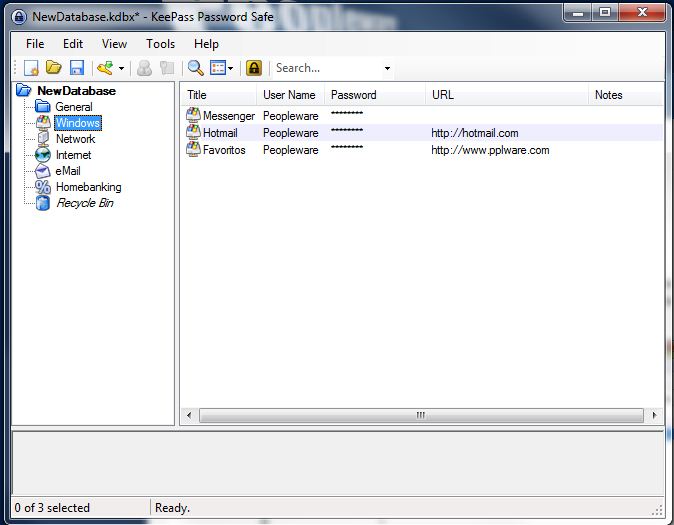
KeePass é uma aplicação gratuita open-source que gere as suas passwords de forma segura longe de olhares alheios. Hoje em dia tantos são os cartões, logins, palavras-chave e códigos de acesso que fica complicado gerir com lucidez todos estes aglomerados de letras, números e símbolos.
keepass_2_9_small


Então podemos guardar tudo no KeePass que, somente com uma forte palavra-chave, permite o acesso aos dados gravados.
O KeePass é apresentado em duas versões distintas. A família 1.X e a família 2.X. Estas duas versões têm diferenças principalmente a nível de funcionalidade.
  • KeePass 1.x: Corre em todos os sistemas Windows e sem pré requisitos. Tem menos funcionalidades que a versão 2.X.
  • KeePass 2.x: Corre em todos os sistemas Windows que tenham o .NET Framework 2.0 ou superior instalado.
Esta aplicação beneficia de uma base de dados cifrada com um poderoso algoritmo. Para mais informações sobre este utilitário veja aqui.
Use-o no seu PC ou no seu PDA (iPhone, BlackBerry e Palm incluídos), em Windows, Mac ou Linux.
As alterações, correcções e novidades face à versão anterior são extensas e podem ser lidas aqui.
Licença: GPL
Sistemas Operativos: Linux/Mac/ Windows 9x/ME/NT/2K/XP/Vista/SevenDownload: KeePass Password Safe 2.16[1.96MB]
Download: KeePass Password Safe Portable [1.71MB]
Download: KeePass Password Safe 1.16 [1.49MB]
Download: KeePass Password Safe 1.16 Portable [1.14MB]
Homepage: KeePass

sábado, 27 de agosto de 2011

Google TV chegará ao Reino-Unido em breve


A Google TV deverá ser lançada no Reino-Unido até ao final deste ano, tornando a possibilidade de ver televisão e usar a Internet na sua televisão, com enorme qualidade.
A Google TV, que foi lançada o ano passado no Estados Unidos, chegará às terras do Reino-Unido ainda este ano. Esta inovação foi estreada no ano passado, nos Estados Unidos, com notas positivas de grande parte dos sites de tecnologia americanos.
Eric Schmidt irá divulgar o preço das subscrições durante o próximo evento em Edimburgo, na Alemanha, no festival de televisão que ocorre nessa cidade.
Um smartphone ou iPhone poderá ser usado como controlo remoto na Google TV, além de uma versão especial do Youtube para o sistema.

Posted By Tony

Outlook2Evernote – O nome diz tudo…

O Evernote é uma ferramenta que adoptei desde que apareceu na Internet. Permite que tenhamos as nossas notas num cliente que se sincroniza com vários PC’s e que permite também o acesso via serviço web. Outra ferramenta que uso com muita frequência é o Outlook. O leitor de correio da suite de produtividade da Microsoft consegue oferecer mais funções que a maioria dos seus concorrentes, sendo estes a mais valia do Outlook.
Uma das funções que faltavam entre estas duas ferramentas era a capacidade de sincronizar notas, para permitir que tivéssemos no Evernote todas as notas que temos criadas no Outlook e assim gerirmos ainda melhor o nosso dia. Foi agora disponibilizada uma ferramenta que permite exportar as notas criadas no Outlook e prepará-las para serem importadas de forma correcta para o Evernote. Chama-se Outlook2Evernote e o seu nome explica bem a sua utilidade.


A utilização deste script é extremamente simples e em poucos minutos conseguem fazer a passagem das notas do Outlook para o Evernote. Este processo de passagem realiza-se em dois passos distintos.
Em primeiro lugar devem descarregar o zip que indicamos no final do artigo e de seguida devem descomprimir os dois ficheiros que o compõem para uma pasta à vossa escolha.
Após esses passos devem aplicar um duplo clique no ficheiro Outlook2Evernote-1.0.vbs e aguardar o processo que vai decorrer na janela de DOS que se abrir. Os passos que estão a decorrer são explicados durante o processo e não requerem qualquer intervenção, com a excepção de terem de dar autorização para a exportação e um Enter no final para terminar o processo.

Neste momento passou a estar disponível na pasta Os meus documentos, um ficheiro de nome Outlook Notes Export seguido da data do dia em que fizeram a exportação.
O segundo passo a ser seguido é a importação das notas para o Evernote. Abram a aplicação e acedam ao menu File, escolham a opção Import e por fim a opção Evernote Export Files.
No final desse processo vão ter as notas que exportaram do Outlook carregadas no Evernote e prontas a serem usadas por vós! Se preferirem, durante o processo de importação podem escolher deixar essas notas numa pasta do Evernote específica ou na pasta geral das notas.
Testem então este script e usem-no sempre que quiserem transpor as vossas notas do Outlook para o Evernote. Funciona na perfeição e sem quaisquer problemas.
Licença: Freeware
Sistemas Operativos: Windows XP/ Vista/ 7
Download: Outlook2Evernote 1.0 [5.50KB]
Homepage: Outlook2Evernote

terça-feira, 9 de agosto de 2011

Menina de 10 anos descobre falha nos jogos para gadgets

Uma menina de 10 anos, com o nickname de Cyfi, descobriu um bug que engana o sistema de tempo e ganhou o prémio da conferência de hackers DefCon para crianças.
Esta menina de 10 anos, que não quis ser identificada pelo nome verdadeiro, tem o nickname de Cyfi e é a mais recente vencedora dos prémios da DefCon Kids, uma conferência de Hackers que decidiram fazer um concurso para crianças.


domingo, 7 de agosto de 2011

Microsoft respondeu à acusação da Google

 Se não viu o Post original pode vê-lo aqui.


A Microsoft respondeu através do Twitter, que a Google não comprou em conjunto com a Microsoft, a Apple e a Oracle, porque não quis.
A Google tinha acusado a Microsoft, a Apple e a Oracle de planear contra a Google. Segundo a Google, o objectivo seria adquirir patentes, para poderem processar a Google, nomeadamente o Android.